
Every gamer knows the nightmare: you are in the middle of a clutch rank match in Call of Duty Mobile, pushing trophies in Brawl Stars, or executing a perfect strategy on your PC, and suddenly Lag. Your screen freezes, your frame rate drops into the single digits, and you end up losing the match.
While most players immediately blame their internet connection, the real culprit is often hiding deep inside your device's background processes and system configuration. In this mega-guide, we will break down how to optimize your phone and PC performance for gaming, eliminate severe FPS drops, and secure your device from background threats that steal your hardware's power.
1. Why is Your Device Lagging?
When your system struggles to maintain stable frames per second (FPS), it is usually battling resource starvation. Your processor (CPU/GPU) and RAM have a strict limit on how much data they can process simultaneously.
If your device is overheating or stuttering, it means unoptimized background tasks or hidden services are hogging those resources. Game optimization is not just about forcing games to run faster; it is about cleaning up your operating system so that your hardware can allocate 100% of its power to the game's graphics and physics engine.
2. Unlocking Maximum FPS on PC: Windows Optimization
PC gaming gives you massive performance potential, but Windows and third-party software are notorious for running useless background services out of the box that eat up your CPU cycles. Use these technical steps to clean up your system:
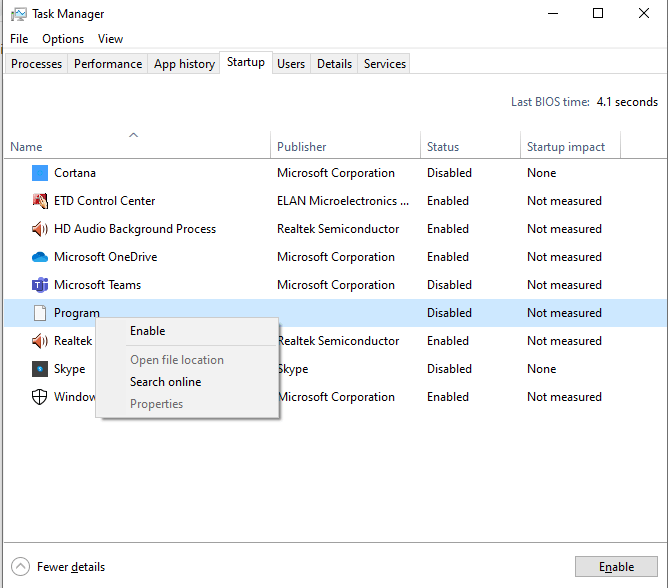
Disable Startup Apps
Press Ctrl + Shift + Esc to open Task Manager and navigate to the Startup Apps tab. Disable heavy launchers, cloud sync tools, and update assistants that don’t need to launch with Windows. This prevents random background threads from interfering with your processor the second your PC boots.
Enable Windows Graphics Performance Preference
Instead of digging through the old Control Panel, Windows 10 and 11 allow you to force high performance directly per app. Go to Settings > System > Display > Graphics. Under the "Custom options for apps", add your game's launcher executable, click on Options, and select High Performance to force your dedicated GPU to handle the app with maximum power.

3. PC Malware: The Ultimate Silent FPS Killer
On a computer, the danger of downloading cracked games, unofficial game modifications, or sketchy cheat software is critical. From a cybersecurity perspective, this is often where severe lag originates:
Trojan Miners (Crypto-jacking): If your GPU fans are spinning loudly and your PC stutters even when idling on the desktop, you might have downloaded a hidden crypto-miner. These malicious scripts run silently, pushing your graphics card to maximum capacity to mine cryptocurrency for hackers, leaving your actual games with zero performance.
Malicious Overlays & Third-Party Mods: Downloading unofficial optimization scripts or third-party game modifications from sketchy forums can inject info-stealers into your system. Not only will they severely lag your game, but they will also steal your session cookies, leading to your Discord or gaming accounts getting completely hacked.
4. Cleaning Up Mobile Performance for Gaming
Mobile devices are highly susceptible to thermal throttling. When a phone gets too hot, the OS automatically slows down the processor to protect the hardware, resulting in sudden lag spikes.
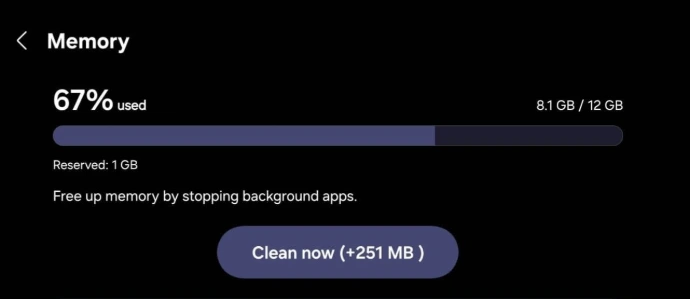
Clear the RAM Cache
Before launching any resource-heavy mobile title, go to your device settings and clear your memory cache. This frees up block memory, allowing your mobile OS to allocate maximum RAM to your game's engine.
Beware of Crypto-jacking and Hidden Apps
If your phone is lagging constantly even when no heavy applications are open and your battery is draining fast, you might be dealing with a hidden security issue. Malicious scripts or hidden background spy apps can hijack your mobile processor to sync data or run scripts in the background, leaving zero power for your matches.
5. The Danger of "Free Diamonds" and Third-Party Game Boosters
When searching for a quick FPS boost, many players make the dangerous mistake of downloading cracked APKs, third-party mod menus, or tools promising "free in-game currency."
Account Ban Risks
Using unapproved third-party software, scripts, or tools that modify game files can trigger anti-cheat systems. This often results in a swift, permanent account suspension or ban from competitive publishers like Riot Games, Activision, or Supercell.
Security Exploits
Most of these third-party "game boosters" or modded files are actually Trojan horses designed to bypass your device's security permissions. Always stick to your phone's native gaming tools (like Samsung's Game Booster or native OS performance modes) to stay safe and optimize your device securely without losing your account.
6. Step-by-Step Mobile Setup for Maximum Performance
To unlock the full capability of your mobile hardware, follow this technical checklist before your next session:
Switch to a Performance Power Mode: Never game on Power Saving mode. Power saving throttles your CPU and reduces the screen refresh rate, killing your FPS. Switch to "Performance Mode" or "Game Mode" to unlock your hardware's full potential.
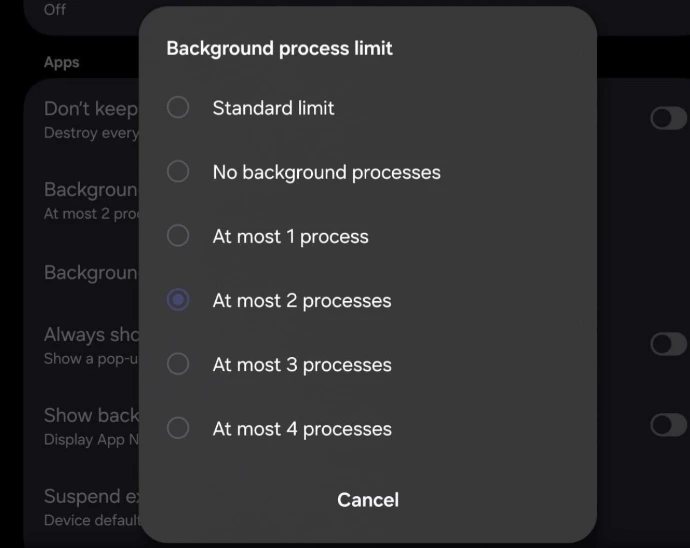
Enable Developer Options: Go to your phone settings, find your Build Number, and tap it 7 times. Inside Developer Options, limit background processes to a maximum of 1 or 2 to ensure your game gets absolute priority.
Optimize Your Network (Ping Fix): Switch off background auto-updates and cloud sync settings while gaming. If possible, change your network settings to a fast, reliable public DNS (like Google's 8.8.8.8 or Cloudflare's 1.1.1.1) to reduce latency and package loss.
7. Performance and Security Go Hand in Hand
Ultimately, keeping your device running smoothly requires keeping it secure. By avoiding sketchy third-party downloads, disabling unnecessary background apps, and keeping your system clean of potential malware threats, you protect both your hardware's FPS and your competitive gaming accounts from being compromised.
🙋♂️ FAQ: Frequently Asked Questions
Q1: Can a virus or malware actually cause gaming lag and FPS drops?
Yes, absolutely. Malicious software like Trojan Miners (Crypto-jackers) or hidden spyware run silently in the background, consuming massive amounts of your CPU and GPU power to mine cryptocurrency or sync stolen data. This leaves your system with zero resources for gaming, causing severe, unexplainable stuttering and frame drops. Always run a clean system scan if your device lags while idling.
Q2: Are third-party "Game Booster" apps safe to use?
Mostly no. While native tools (like Samsung's Game Booster or Windows Game Mode) are completely safe and optimized by the manufacturers, most free third-party "FPS Boosters" or modded APKs are Trojan horses. They either inject adware into your system—which worsens lag—or they modify game files, triggering anti-cheat systems and leading to permanent account bans from competitive publishers like Supercell or Riot Games.
Q3: Does altering "Developer Options" on mobile harm my device?
No, as long as you only change performance settings. Changing the Background process limit to 1 or 2 simply tells your mobile operating system to prioritize your current game engine over idle background applications. It does not harm your hardware, but it safely prevents thermal throttling and saves battery during intense match sessions.
Q4: Why did my FPS drop after a recent Windows or game update?
Updates sometimes overwrite your custom graphics preferences or introduce temporary optimization bugs. If you notice a sudden lag spike after an update, re-verify that your Graphics Performance Preference is still set to High Performance for your specific game launcher, and ensure your GPU drivers are fully updated.